Every league has the same trade story. Two coaches work something out in a parking lot after a Tuesday game. One of them texts the convenor. The convenor is at work, reads it three hours later, and replies “sounds fine.” Somebody edits a roster. Two weeks later a third coach asks why a guy who was on the Wolves is now scoring for the Vipers, and nobody can find the message that agreed to it.
Trades are now a real object in HockeySync. Team staff propose, counter, accept or reject offers. A league admin approves or vetoes every accepted deal before a single player moves. And when it goes through, it lands on a public feed your whole league can read.
The Offer Is a Two-Sided Thing
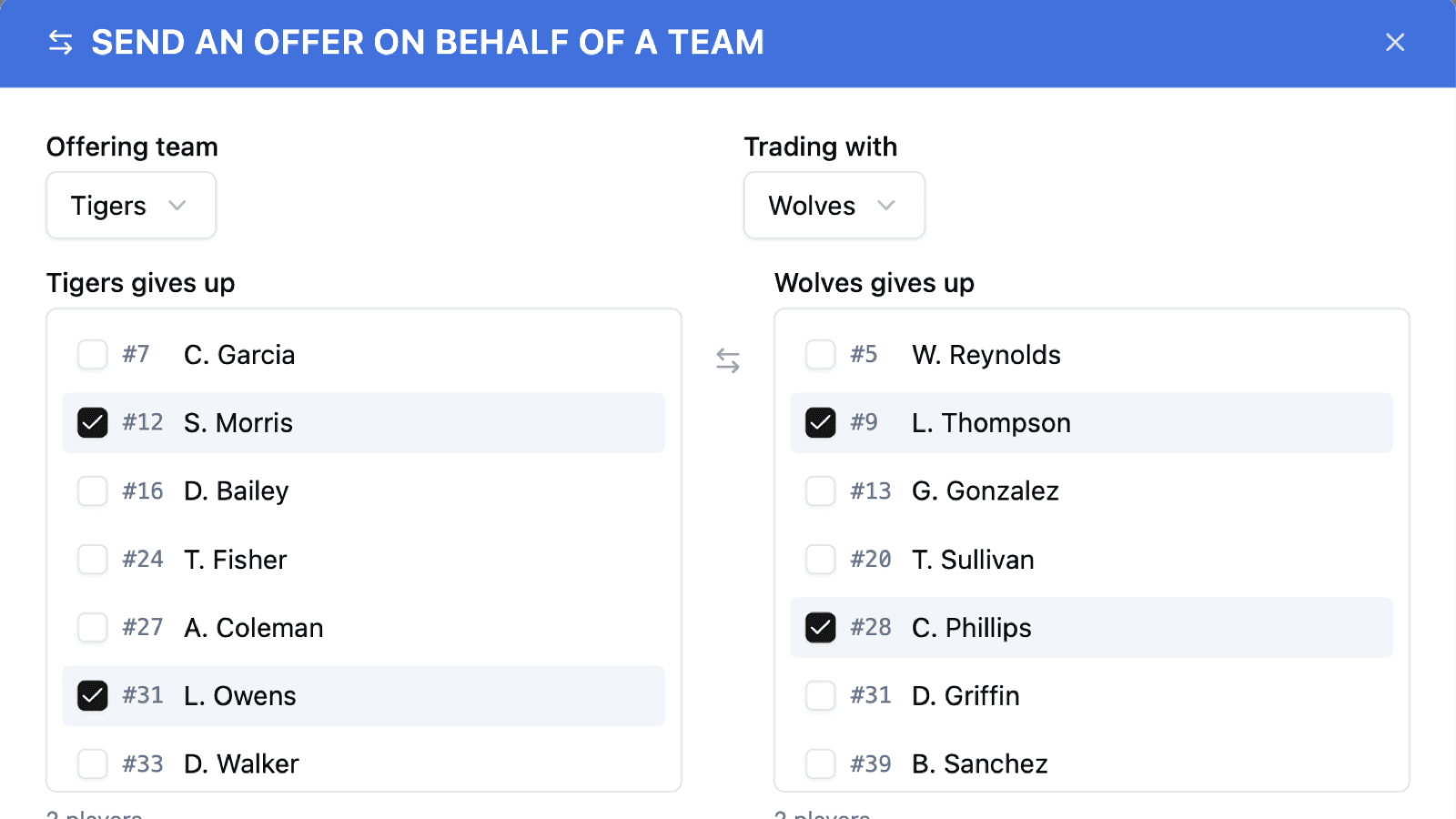
A trade in HockeySync always has two teams and at least one player, and the proposal screen shows it the way you'd draw it on a napkin: your side on the left, theirs on the right, and a swap medallion in the middle. Pick who you're giving up, pick who you want, add a note, send it.
Hover any name and you get that player's season line—games, goals, assists, points—without leaving the offer. You shouldn't have to open a second tab to remember whether the winger you're being offered has actually scored this year.
Four Things the Other Team Can Do
An offer arrives in the receiving team's Trade Center with four buttons, and they mean exactly what they say:
- Accept — both sides agree. The trade moves into the league admin's queue. No player has moved yet.
- Reject — the offer is closed. Nothing else happens.
- Counter — the original offer closes and a new one goes back the other way, linked to the one it came from. That's the negotiation: an actual chain you can read start to finish, rather than a text thread nobody kept.
- Withdraw — available only to the team that sent it. The side that received an offer rejects; the side that sent it withdraws. Those are different actions belonging to different people, and HockeySync will not let one stand in for the other.
Only the receiving team can respond to an offer, and only while it's still pending. An offer that has been rejected, withdrawn, countered, approved or vetoed is finished, and no button anywhere will reopen it.
Nothing Moves Until the League Says So
This is the part most spreadsheets get wrong. Two coaches agreeing is not the same as a trade happening. Leagues have rules—roster limits, deadlines, a policy about the last-place team stripping itself for parts in February—and somebody has to be able to say no.
So an accepted trade sits in Awaiting approval until a league admin opens the Trades tab in the association dashboard and decides. Approve it and the rosters move. Veto it and they don't—and a veto requires a written reason, because a deal killed after both teams shook on it needs to come back with something the captains can act on.
The Roster Check Runs Twice
An offer can sit in the approval queue for days. In that time a player gets released, or an admin moves someone by hand from the Teams view, and the offer quietly stops describing reality.
HockeySync validates the roster when the offer is created and again at the moment of approval. If a player named in the trade is no longer on the team the offer says they're on, the approval is refused and tells you which side changed—rather than half-applying a deal and leaving you with a roster nobody can reconcile.
When a trade is approved, every player in it moves in a single operation. Either the whole deal lands, or none of it does. A half-applied trade is a broken league.
Stats Travel With the Player—and the Trade Remembers
A traded player keeps the season they've had. Their goals, assists and games played come with them, because that's how a season stat line works: it belongs to the player, not the sweater.
The trade itself also records where that line stood on the day of the deal. So the feed can honestly say what each team gave up at the time, and the argument about who won the trade has actual numbers attached to it—which is, let's be honest, the real reason anybody wants a trade page.
A Public Feed, Grouped by Date
Completed trades appear on your league's public Trades page, grouped by the day they went through, showing both teams and every player who moved. Pending offers, counters and vetoes never appear there—only approved deals are public, so a negotiation that went nowhere stays between the two teams.
There's also an opt-in Recent Trades tile for your league home page, if you want the last few deals sitting next to your standings and upcoming games.
Admins and Coaches See Different Screens
A coach gets a Trade Center on the league page: offers received, offers sent, and a button to propose a new one—scoped strictly to the teams they actually staff.
An admin doesn't have an inbox, because an admin isn't negotiating. Their work—approve, veto, send an offer on a team's behalf, record a deal that was agreed offline—lives in the association dashboard next to Discipline and the rest of the league-office tools. On the public league page they get a read-only oversight strip showing what's waiting on them.
And an admin who also coaches a team gets both: a normal, correctly-scoped Trade Center for their own bench, plus the approval queue. In a small league that's most of the board.
One League, One Season
Trades are scoped to a single league and a single season. Both teams have to be in it, which is what stops a Division 1 team from being offered a Division 2 player, and stops last season's roster from showing up in this season's deal.
Approved trades are permanent by design. There is no un-trade button, for the same reason there isn't one in a real league: if you want to reverse a deal, you record the opposite deal, and the history shows both.
Available Now
Trades are live for every HockeySync league. Coaches and team staff will find the Trade Center on their league page; admins will find the Trades tab in the association dashboard, where the approval queue lives. Everyone else gets the public feed.
Pair it with the Season Manager and your rosters, your stats and your transactions all tell the same story.
Not using HockeySync yet? Sign up free and run your next deadline properly.