Down a goal with a minute left, the coach waves the goalie to the bench. The other team puts one into the empty net. Then the starter comes back for the faceoff, and ten minutes after the game somebody at the league office has to work out who wears that loss, whose save percentage those late shots belong to, and why the backup who played the whole third period shows zero minutes.
Goalie tracking answers those questions while the game is being scored. Each bench now keeps a log of who was in net and when—starting with the starter at puck drop—and every goalie stat HockeySync records is read from it.
Pull, Switch, Goalie Back In
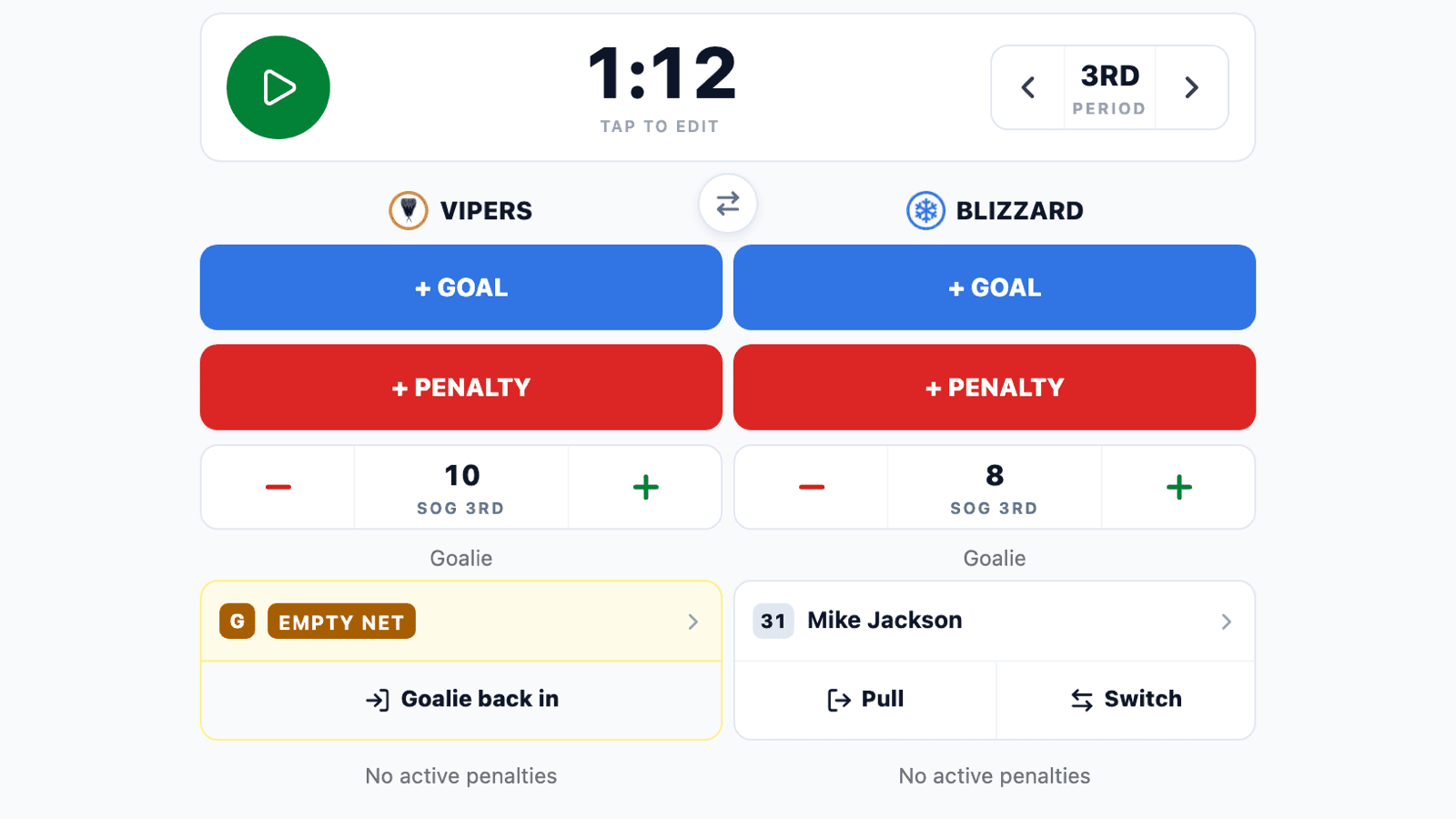
Under each team's shot counter, the scoring screen shows the goalie in net: their sweater number and name, with two buttons underneath.
- Pull empties the net at the game clock. The card turns yellow and reads Empty net, so nobody at the bench can miss it.
- Switch swaps in the other dressed goalie. It's greyed out when a team only dressed one, and if a team dressed three, it asks which.
- Goalie back in replaces both buttons while the net is empty, and puts the goalie back at the current time.
Each change lands at once, and a toast confirms it with an Undo button for the tap that hit the wrong side. Undo steps aside if that bench has changed again since, rather than scrambling the log.
If the clock isn't being run—play has started but it still reads the moment the goalie went in—the strip asks for the time instead of guessing, so a stopped clock can't wipe out a goalie's minutes. A team that dressed no goalie at all doesn't get the strip.
The Goalie Log
Tapping the goalie's name opens the Goalies sheet: shots, goals against, saves and time on ice for each goalie in the game, and underneath, the full list of changes—each stint, and each empty-net stretch, with its start and end time. The scorekeeper can add, edit or delete a stint there when the bench changed goalies and nobody told the timekeeper until the intermission.
Moving a change also moves the goals around it. If a stint turns out to have ended two minutes earlier, the goals scored in those two minutes are re-charged to whoever was actually in net.
On a game that's already been saved, editing the log is a stat correction: HockeySync shows what will change in the season totals first, and applies it when you confirm.
Stats Charged to the Right Goalie
- Goals against go to whoever was in net at the time of the goal. While the net is empty, the goal dialog's Empty Net switch starts on.
- Shots go to the goalie in net, and to nobody while the net is empty. The team still gets the shot; the goalie on the bench doesn't get a save he never made.
- Saves for each goalie come from the shots they faced, not the team total.
- The decision follows the NHL rule. The win goes to the goalie in net when their team took the lead for good. The loss goes to the goalie in net when that goal went in—or, on an empty-net winner, to the goalie who was pulled. A shootout is decided by the goalie in net when overtime ended.
Games scored before the goalie log existed keep the rules they were saved under. Nothing about an old game changes unless someone corrects it.
Time on Ice
Each goalie's time on ice is the length of their own stints, so empty-net time belongs to nobody. A game that ends on a sudden-death overtime goal stops the clock at that goal. Leagues that never press play on the app's clock still get minutes: the game's length comes from the league's period lengths.
Minutes show on the game's box score, and the printable game sheet now fills in its goalie minutes grid and lists each goalie change. The live scoreboard shows an EN badge beside a team while its net is empty, so fans following along know too.
Save Percentage, Goalie Profiles and Game Logs
Save percentage is now an optional column on the players tab, next to time on ice. Both are off by default, since not every league tracks shots or runs the clock. Once it's on, save percentage also shows for goalies on each team roster.
A goalie's profile used to show the same season-by-season line as a skater's: goals, assists and points, which for a goalie is a row of zeros. It now shows the goalie columns your league has switched on, such as wins, goals against, GAA and save percentage. The cards at the top end on save percentage. Career rates are worked out from the career totals, not averaged across seasons.
And a goalie's last five games finally show up. They used to be built from goals, assists and penalties, which a goalie rarely records, so every goalie's game log was empty. Each game now lists goals against and saves, with a dash for a game they didn't tend goal in.
Where to Find It
Scorekeepers: the goalie strip sits under each team's shot counter on the scoring screen, and the Goalies sheet is one tap away on the goalie's name. You can try the strip without an account in the live scoring demo.
League admins: turn on save percentage and time on ice from the players tab's settings. Goalie profiles and game logs are on every goalie's player page.
Available Now
Goalie tracking is live for every HockeySync league, in English and in French. Nothing to switch on—the log starts with each team's starter the next time a game drops the puck.
Not using HockeySync yet? Sign up free and give your goalies stats that match the game they played.