A parent downloads the team's schedule into their phone calendar in September and stops thinking about it. In October the league moves a Thursday game to a different rink and adds three games it hadn't scheduled yet. The calendar still says the old rink, the new games aren't in it, and the first sign anything changed is an empty parking lot at 7:40 on a school night.
A downloaded calendar file is a photograph of the schedule on the day you took it. Most leagues release and adjust fixtures as the season goes, so that photograph is wrong within a week, and nothing tells you. Team calendar feeds replace it with a live subscription: you add one team's schedule to your calendar once, and your calendar app keeps checking HockeySync for changes on its own.
One Team, Not the Whole League
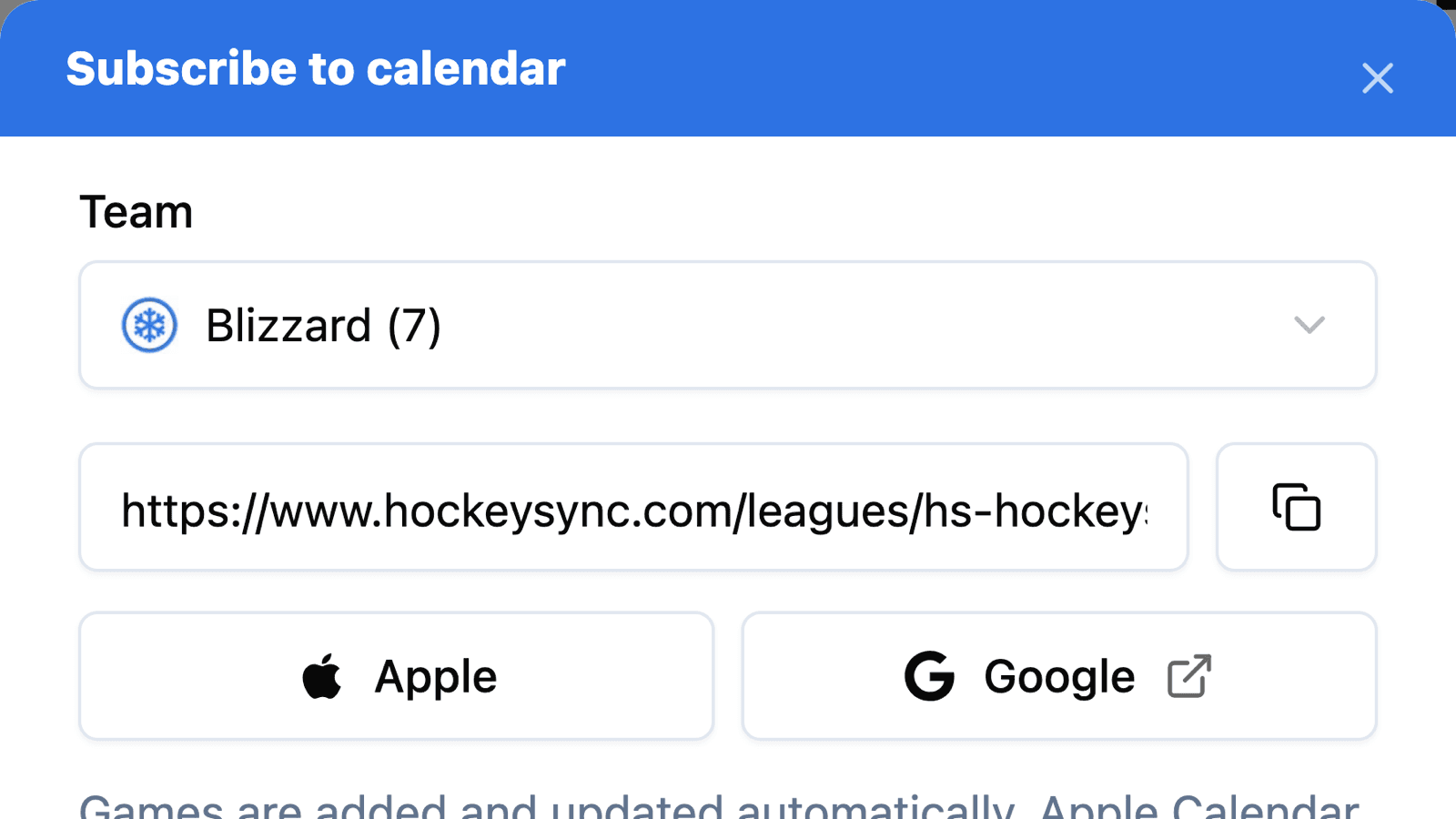
The person subscribing is almost always following one bench. A league-wide calendar buries their two games a week under sixty others, which is why nobody keeps one. So the first thing the dialog asks is which team, and each option shows how many games that team has left to play.
If you're already looking at one team's schedule, that team is picked for you. Following two kids on two teams? Subscribe to both. Each calendar is named for its team and league—“Blizzard — Division 1”, for example—so they're easy to tell apart in your calendar's sidebar.
Subscribe in One Tap
Once a team is chosen, the dialog gives you three ways in:
- Apple hands the feed straight to Apple Calendar on an iPhone, iPad or Mac, which offers to subscribe.
- Google opens Google Calendar's “add calendar from URL” screen with the feed already filled in. Confirm, and it's added.
- Copy link gives you the feed address for Outlook or any other calendar app that can subscribe to a calendar by URL.
The link is the same for everyone following that team, so a team manager can copy it once and paste it into the team email or group chat. Nobody needs a HockeySync account to use it.
What Lands in Your Calendar
Every game on the team's schedule for the current season, each one titled with the matchup, like “Blizzard vs Vipers”. Playoff games are tagged [PLAYOFFS]. Each event carries the rink's address (or its name, if no address is on file), any note the league attached to the game, and a link back to the league page. Games are blocked out for two hours from puck drop.
When the league adds a game, it appears. When a game moves to a new time or a different rink, the entry already in your calendar is updated rather than duplicated. Games that have been played stay in your calendar, too—a feed that deleted last night's game the next morning would be erasing your own history.
Built to Keep Working All Season, and the Next One
A calendar subscription is fetched quietly, over and over, by software nobody is watching. When one breaks, nothing warns you: your calendar just stops getting new games. So the feed is built to stay healthy for as long as you're subscribed:
- It follows the league into next season. The feed always serves the league's current season, so the subscription you set up this fall picks up next fall's schedule without you touching it.
- It survives the summer. Between seasons the feed is simply empty. It doesn't return an error, which calendar apps treat as a broken subscription and give up on for good.
- It survives a team rename. The feed is tied to the team itself, not its name, so renaming a team doesn't break anyone's calendar.
- It lives on hockeysync.com. Even if your association runs HockeySync on its own domain, the feed address uses www.hockeysync.com, which works for every league no matter which address you came in through.
How Quickly Changes Show Up
A subscription updates on your calendar app's schedule, not ours, and the apps differ. The feed asks to be checked every hour. Apple Calendar sets up new subscriptions to check weekly by default, so it's worth changing that to a shorter interval in the subscription's settings. Google Calendar decides for itself and can take up to a day to pick up a change.
The dialog says this in one line under the buttons, because it's the one thing you couldn't otherwise know—and without it, a game that hasn't appeared yet looks like a broken feature instead of a slow check.
Where to Find It
Open your league's Schedule tab, click the gear icon above the games, and choose Subscribe to calendar. It's on every public league schedule, for anyone who can see it.
The old calendar download is gone. It's been replaced by the subscription, which is the version that stays right.
Available Now
Team calendar feeds are live for every HockeySync league, in English and in French. Nothing to set up—league admins just keep the schedule current, and every subscribed calendar follows.
Not using HockeySync yet? Sign up free and put your schedule where your players already look.